Add and edit people
This page covers adding a user (someone who can sign in), adding a person (someone without a login), and editing either of them. Open the dialog from Users and Persons with New () or the pencil on a row. You always fill in the person details. If they should sign in, you also set their email and their user role (the field is called SUM-IT role). Save stores your changes, and Cancel () closes the dialog without saving.
Add user (create)
When you click New, the dialog opens as Add user. By default, the checkbox Allow person to log in to SUM-IT is checked, so you are creating a user with a login (and you must confirm the email address).
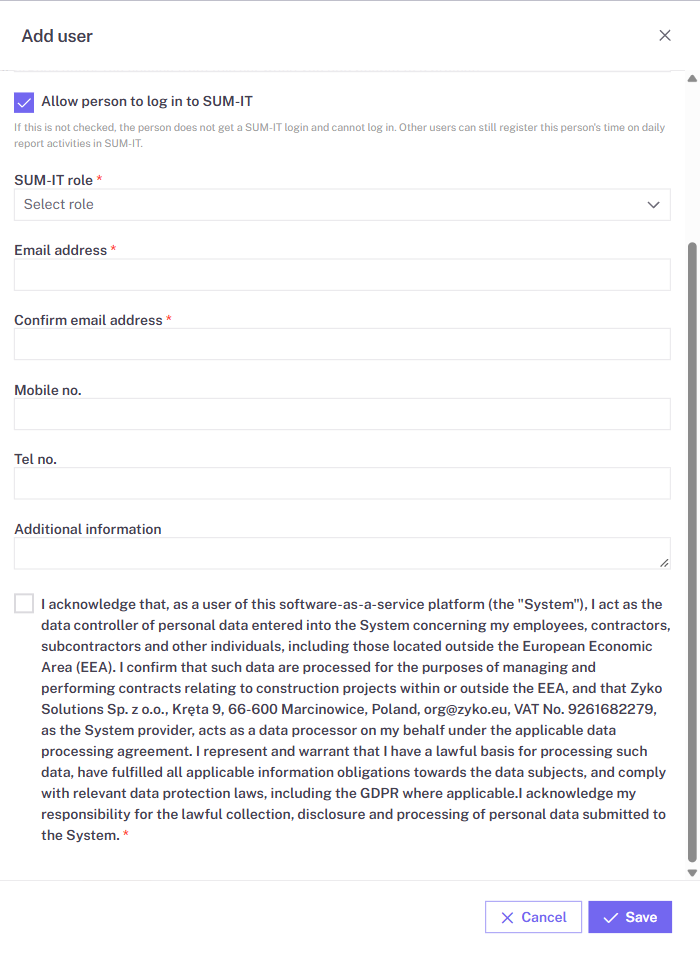
When you create or invite a user, they receive an email to finish setting up their account and appear with status New until they complete sign-in. You can resend that invitation later from the Users and Persons list with the send icon, while their status is still New.
If you uncheck Allow person to log in to SUM-IT
- The record is saved as a person only (list status Not a user), with no login account.
- No invitation or account-creation email is sent.
- That person cannot sign in to SUM-IT or to other modules such as Time-it.
- They can still be assigned to projects in SUM-IT, and other users can register their time on daily report activities.
- You can turn them into a user later. Open Edit, tick Allow person to log in to SUM-IT, set their user role (SUM-IT role), Email address, and Confirm email address, then click Save.
- Once someone is a user, you cannot remove their login again.
Edit
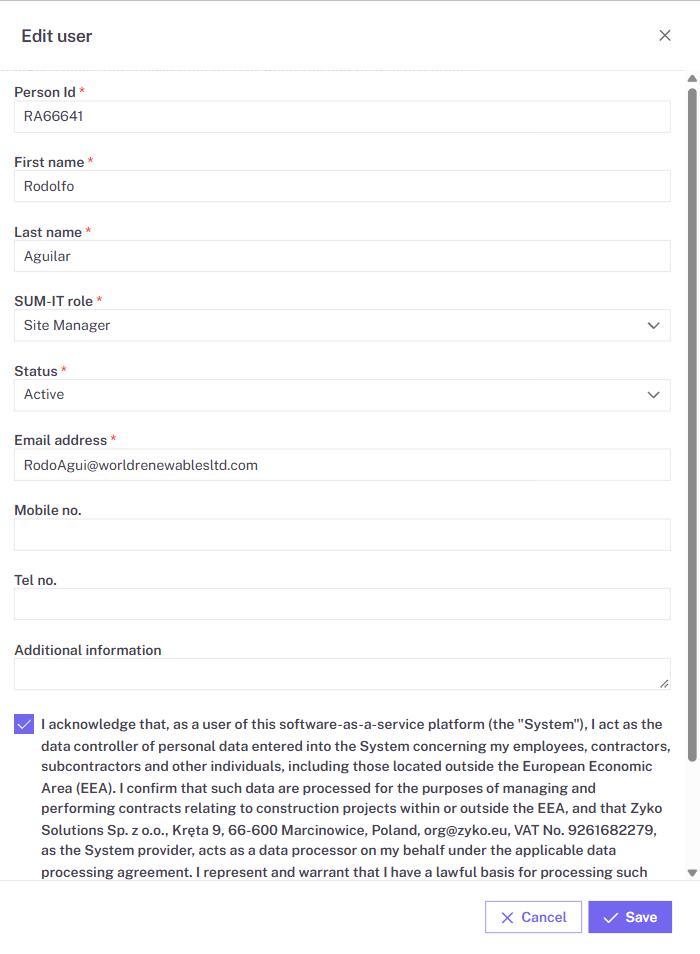
On Edit, the same dialog shows the person's current details. For someone who is already a user, the login checkbox is not shown (login cannot be removed). For a person who is not yet a user, you can tick Allow person to log in to SUM-IT to give them a login, as described above.
Change someone's role
A user's role decides what they can see and do in your organization. If their job changes, you can give them a different role.
To change someone's role:
- In Users and Persons, click the pencil on their row.
- In the SUM-IT role field, pick the new role.
- Click Save.
You need the Users and persons Create/Edit user permission to change a role.
Roles with access to health and safety data
Some roles let a person see sensitive health and safety information about other people. Because this information is private, SUM-IT checks with you before you give someone such a role. This only happens when the new role gives them health and safety access they did not have before.
- If you have access to health and safety data and you give a role with that access to someone else, a Health and safety role window asks you to confirm: You have granted role [role] to [name]. This role grants access to sensitive health and safety data of other persons. Do you want to continue? Choose Yes to save the new role, or No to cancel the change.
- If you do not have access to this data but you try to give someone a role that has it, SUM-IT blocks the change and the role stays as it was. You see: You cannot grant the [role] role to [name]. This role grants access to sensitive health and safety data of other persons. Only Administrators and users who already have access to this data may assign this role. Ask an administrator, or someone who already has this access, to make the change.
If you change someone's role to System Administrator, or from System Administrator to another role, their role is updated automatically in every SUM-IT project they belong to, to match the new user role.
Permissions
You need the Users and persons Create/Edit person permission to add or edit a person. Creating or editing a login needs the Users and persons Create/Edit user permission. Without those permissions, New or Edit may be hidden or limited.