User Roles
User Roles is where you define the user roles used in your organization, and the permissions each role has. A role is a named set of permissions. When you give someone a login on Users and Persons, you assign one of these roles so they get the matching access.
A single role can hold permissions for more than one app on the platform. In the same role you set what the person can do in SUM-IT, including HSE and certificates, in Time-it, and in Administration.
What you can do
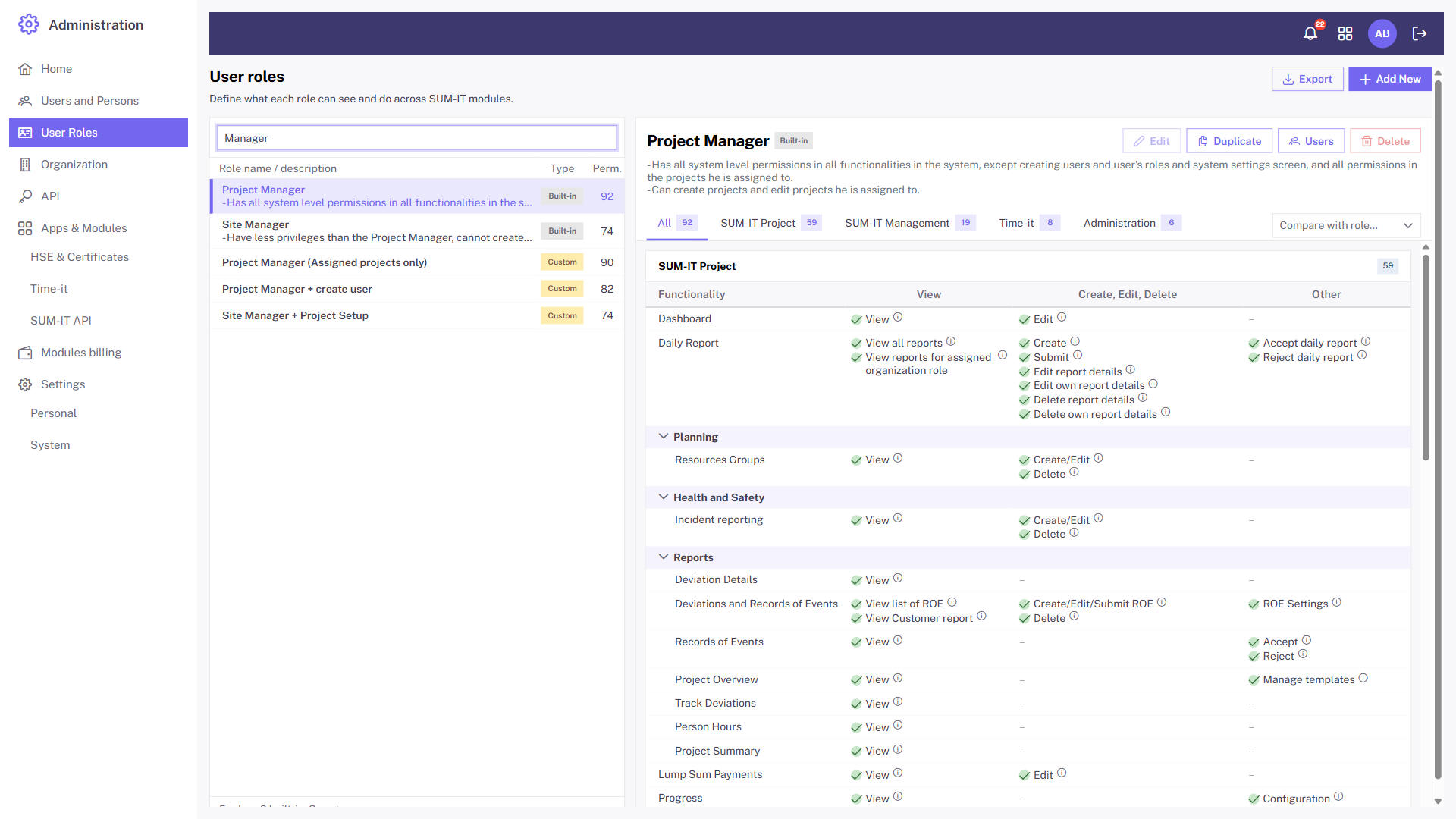
- Open a role in the list to see the table of what that role can see and do, grouped by area.
- Click Add New () or the pencil to create or change a custom role and its permissions. The table lists each permission by name (for example
View,Create, orSubmit). The info icon next to a name shows a short extra description if you need it. Creating a role is covered under Create a role below. - Click the copy icon to start a new role from an existing one (see Copying a role).
- Click the users icon to see who currently has that role.
- Use Compare with role… to see permission differences between two roles.
- Click Export () to download roles as Excel.
- Click the bin to remove a role you no longer need (after confirmation). You may not be able to delete a Built-in role, or a role that is still assigned to someone. Built-in roles also cannot be edited.
Role assignment
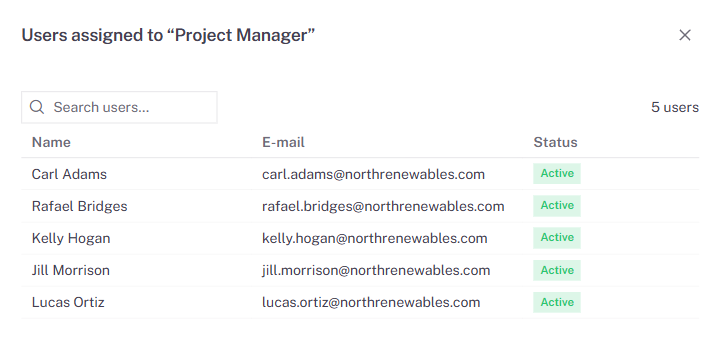
On User Roles you can also see who has which role. Open a role and click Users (). A list titled Users assigned to "[role]" shows each person's name, email, and status. You can only view people here: you do not give people roles on this screen. You assign a user role to someone when you create or edit their login on Users and Persons, and that is also where you change someone's role.
Compare two roles
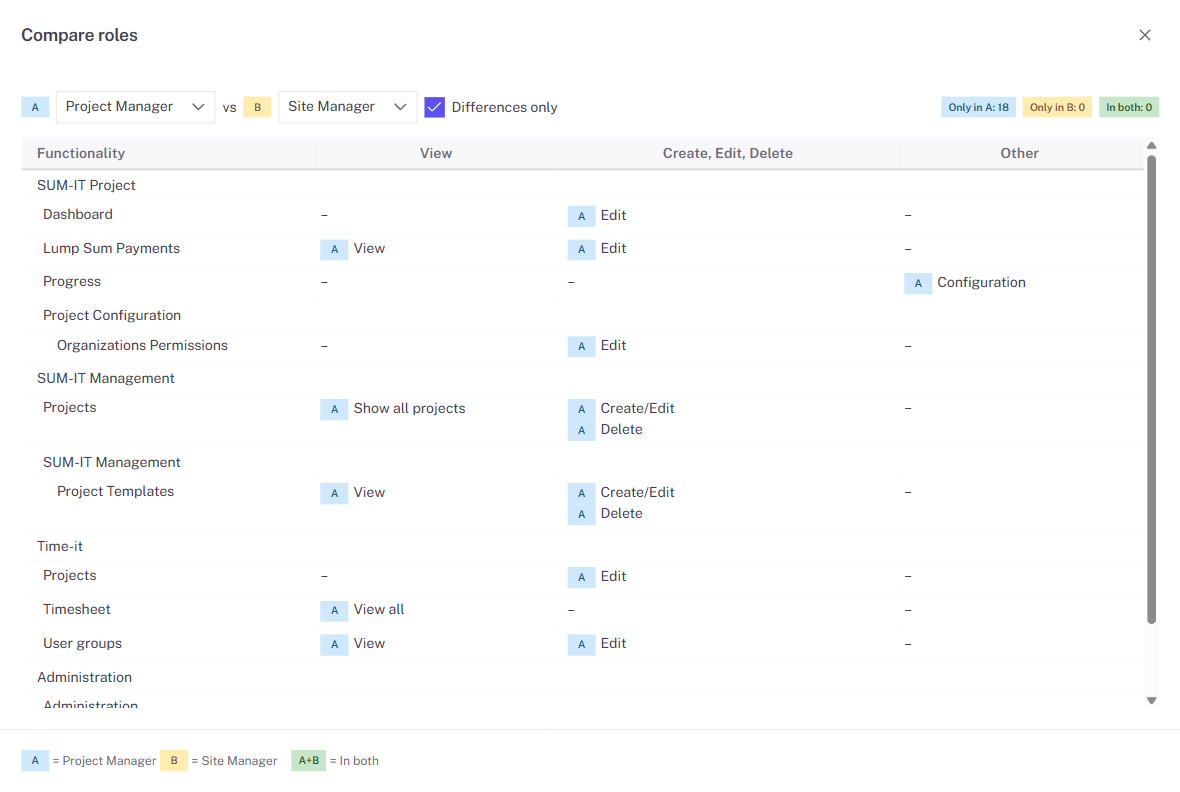
On an open role, pick another role from Compare with role…. That opens Compare roles, where the two roles sit side by side in a permission matrix (View; Create, Edit, Delete; and Other), with badges for permissions only in A, only in B, or in both. You can change either role in the dialog, and tick Differences only to hide permissions both roles already share. The comparison is view-only — it does not change either role — and you cannot compare a role with itself.
Create a role
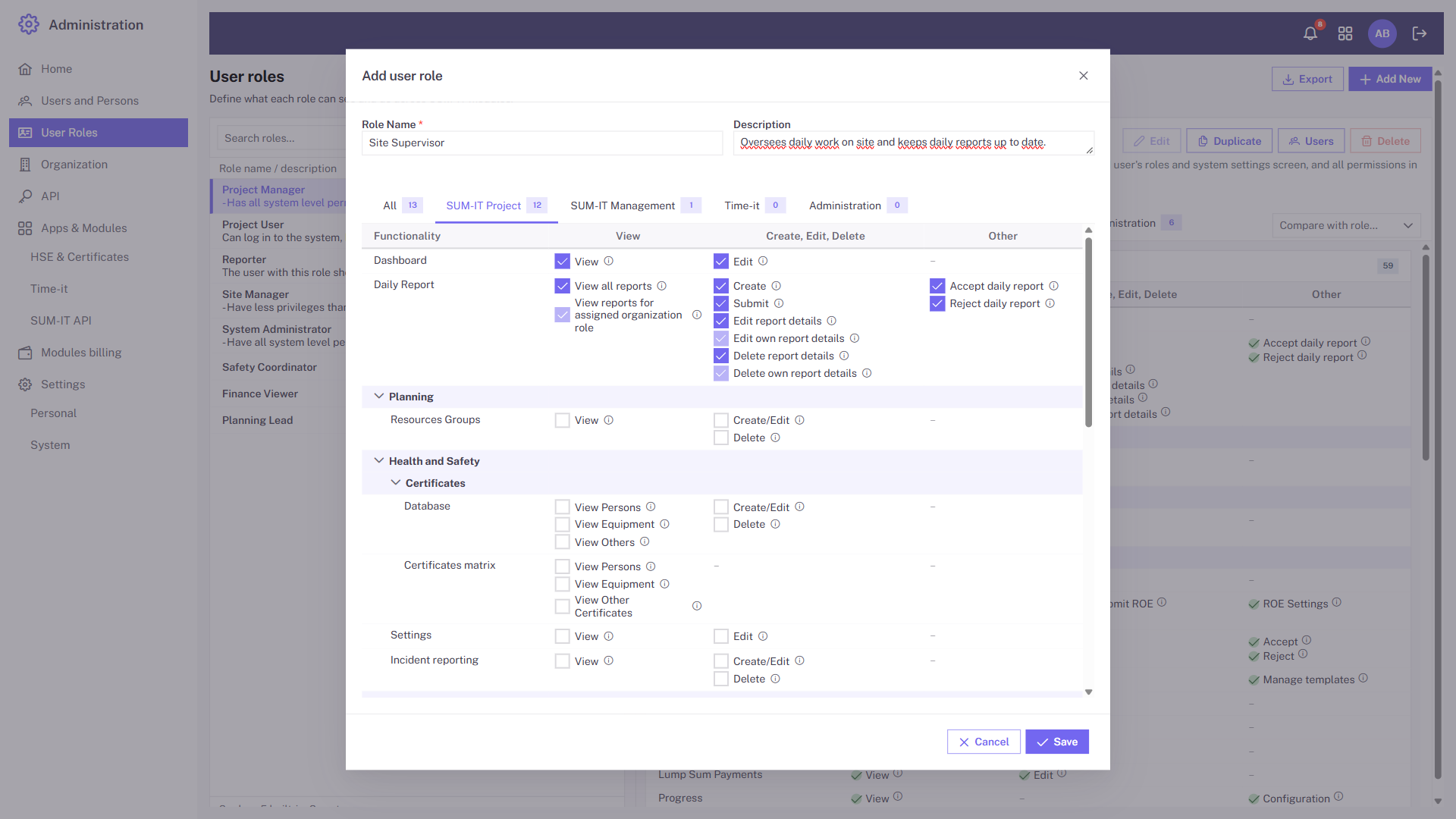
Click Add New () to open Add user role. Enter a Role Name (required). You can also add an optional Description. Then tick the permissions this role should have. The list is grouped under tabs such as All, SUM-IT Project, SUM-IT Management, Time-it, and Administration. Ticking those boxes is all it takes to define what the role can do. Click Save when you are done.
Pre-defined SUM-IT roles
The platform comes with these Built-in roles: System Administrator, Project Manager, Project User, Site Manager, and Reporter. You can open them to review their permissions. You cannot edit or delete a Built-in role, but you can Duplicate it to create a new role based on it: start from the built-in role that is closest to what you need, then adjust its permissions (see Copying a role).
Copying a role
Use Duplicate () when an existing role is close to what you need. It opens Add user role with that role’s permissions already ticked. The name and description start empty so you can set your own. Permissions that manage creating or deleting roles are not copied. Adjust the ticks if you need, then Save.
Permissions
You need the User roles View permission to open this screen. Creating, editing, and duplicating need the User roles Create/Edit permission. Deleting needs the User roles Delete permission.