Time-it module
What it is for
Time-it is the add-on where people record the hours they worked on projects and tasks, send those hours for approval, and turn them into reports your organization can rely on. Workers get a simple place to log time. Managers get a clear overview of each approval period and can approve work or send it back. You can route submissions with user groups, set reminders so periods do not sit waiting, and export approved time for payroll and planning.
That helps your organization keep one reliable record of hours — without chasing spreadsheets. You can use Time-it on its own, or connect it with SUM-IT so project hours sync with the daily report.
The first full billing month after you first turn Time-it on is free, so you can try it without a charge.
For the day-to-day screens people use after Time-it is on, open the Time-it user guide.
Workers log their own hours in Time-it. When a manager opens the daily report in SUM-IT, those hours show on the Time-it tab, so they can turn them into activities without typing the time again for each worker.
What you get
Once the module is on, Time-it opens these main screens for logging, submitting, and approving hours.
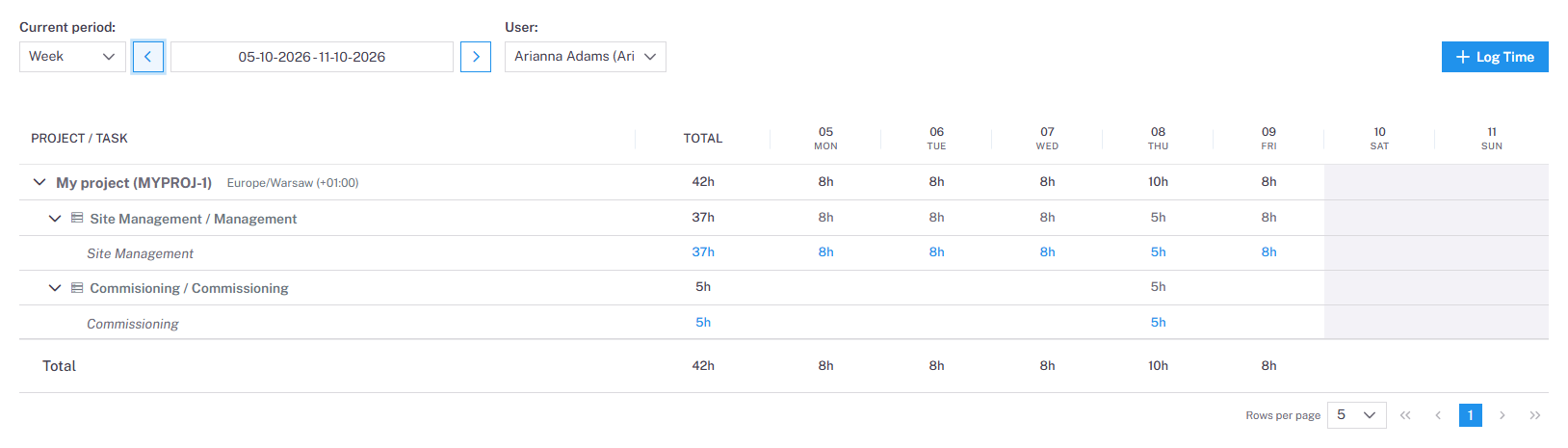
Timesheet
Timesheet is the calendar-style grid where people see hours by project, task, and day. You can look at a Week or a Month, open Log Time, and review a period at a glance before anything is submitted.
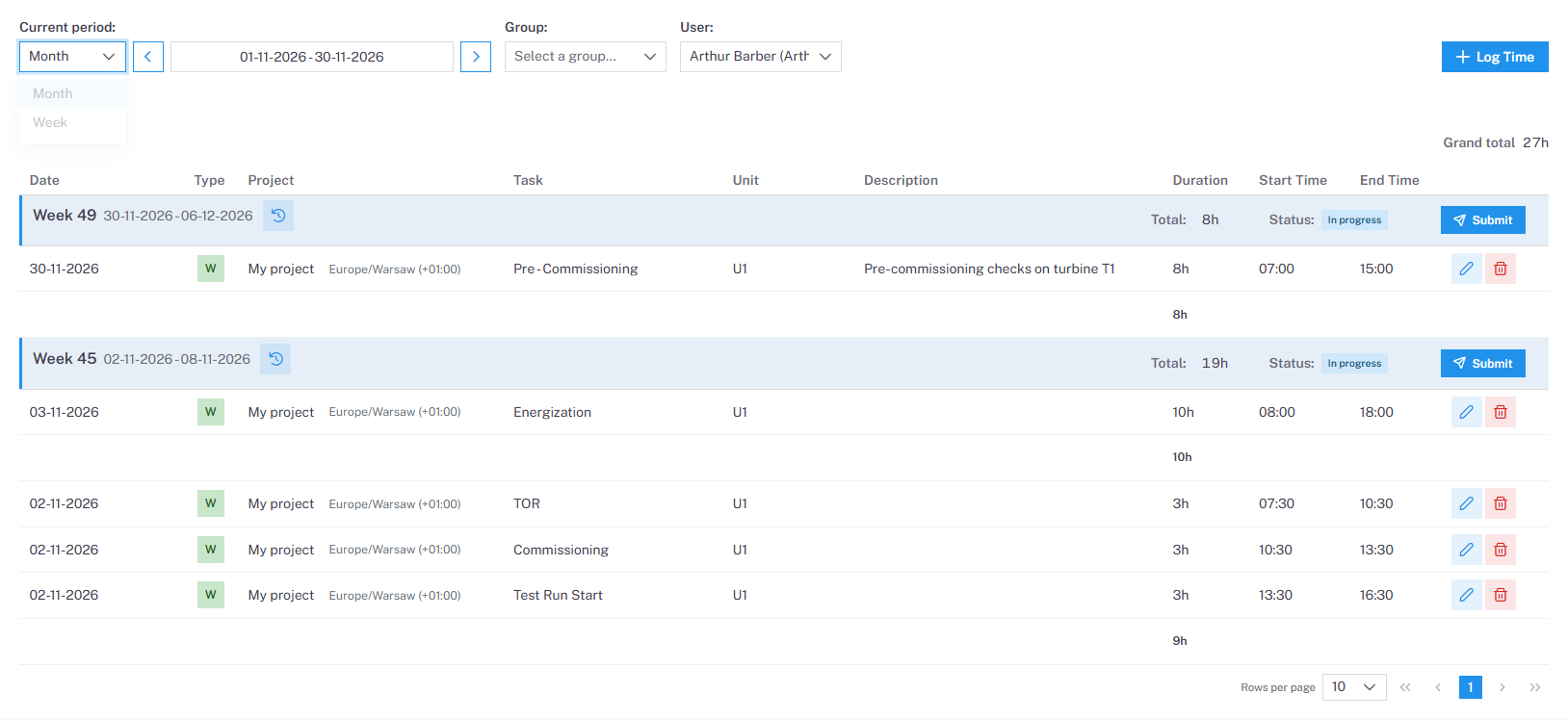
List View
List View shows the same hours as a simple list, grouped by approval period. This is also where someone Submits a period for approval, or Unsubmits it while it is still waiting.
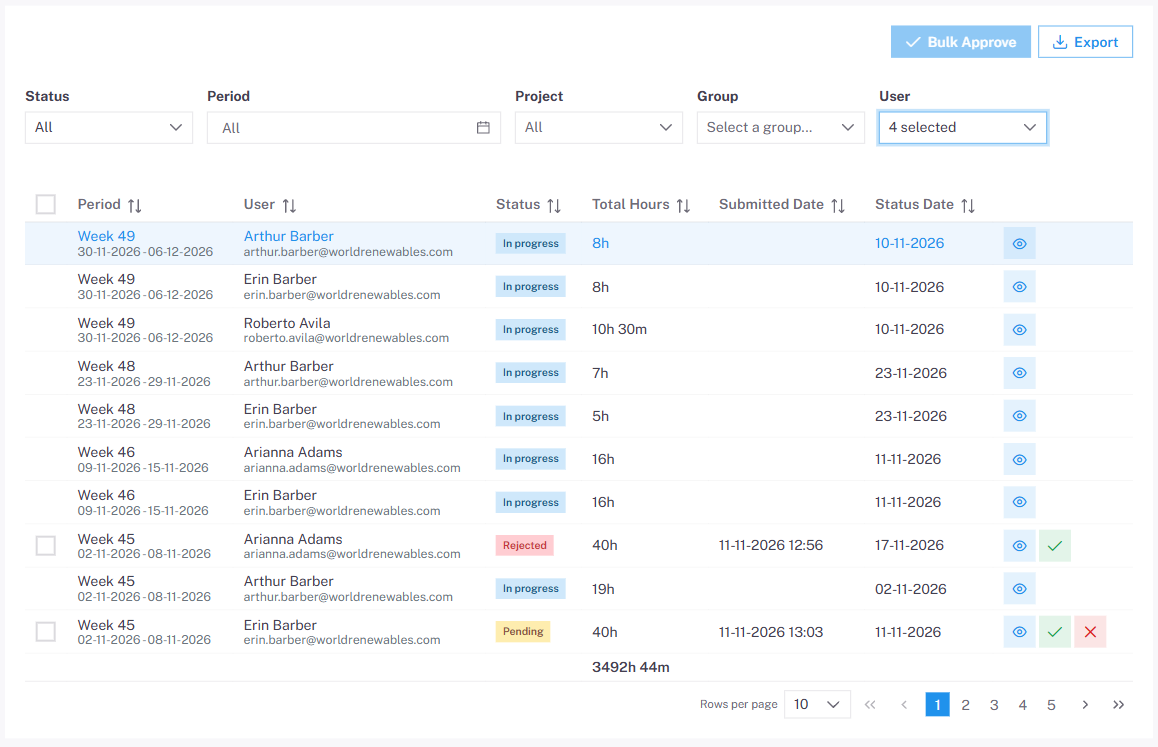
Approvals
Approvals lists the periods that people have submitted and that are waiting for a decision. Approvers open a period, check the hours, then approve or reject — with comments and history kept on the period.
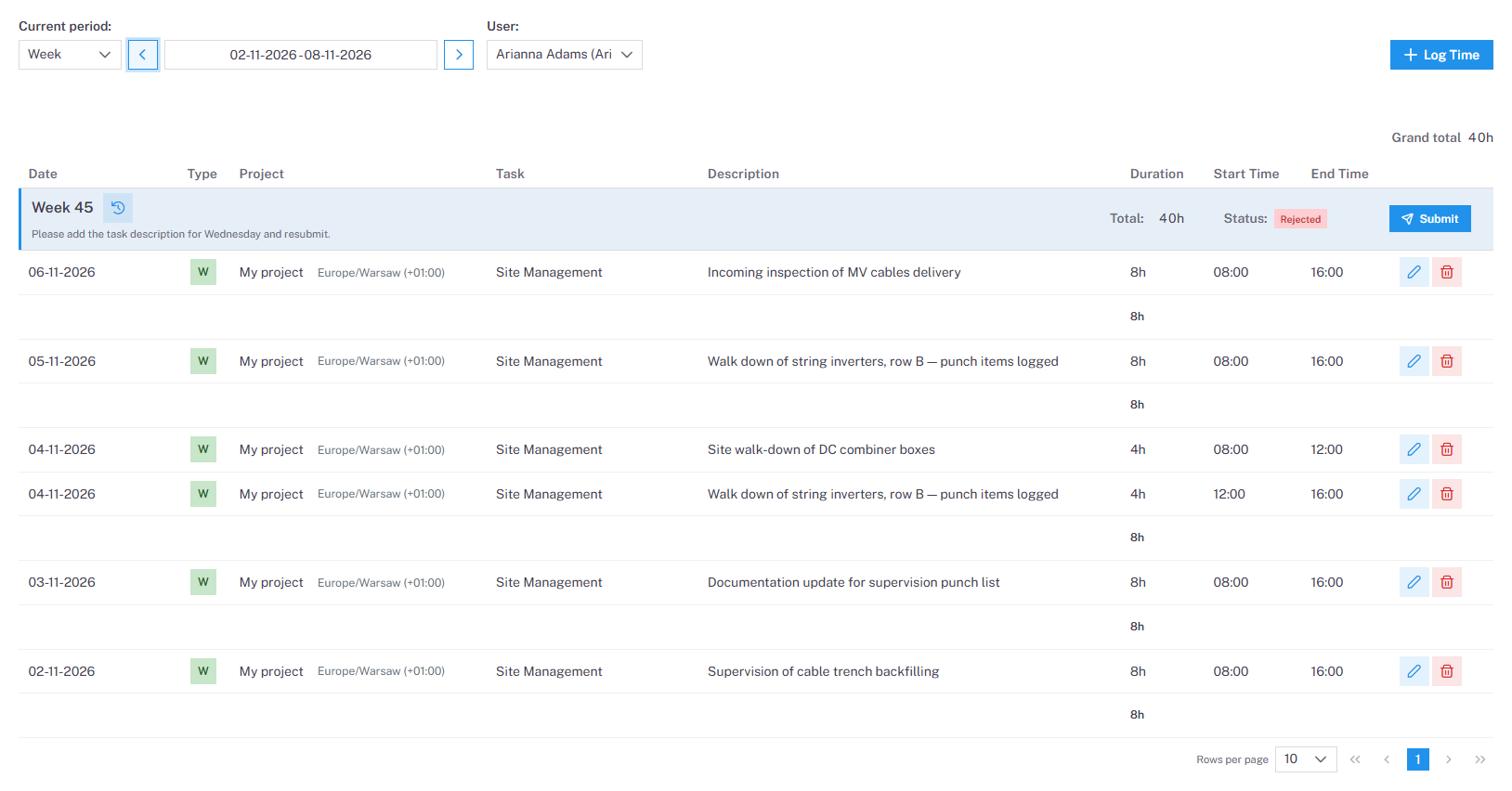
Period statuses
Hours are approved one period at a time (a day, a week, or a month, as your organization chose). Each period shows a clear status — In progress, Pending, Approved, or Rejected — so everyone can see what still needs work and what is already locked.
Notifications
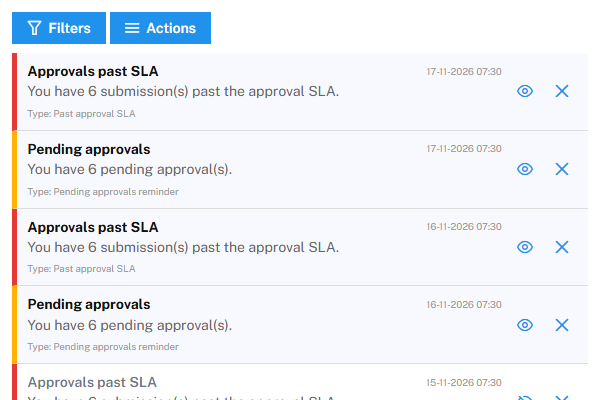
The bell in the Time-it top bar shows in-app alerts about submissions waiting for approval, late approvals, and outcomes on your own periods. You can open a notification and act without hunting through the menus.
Turning the module on
Before the module is on, Apps & Modules → Time-it shows an invitation to turn it on:
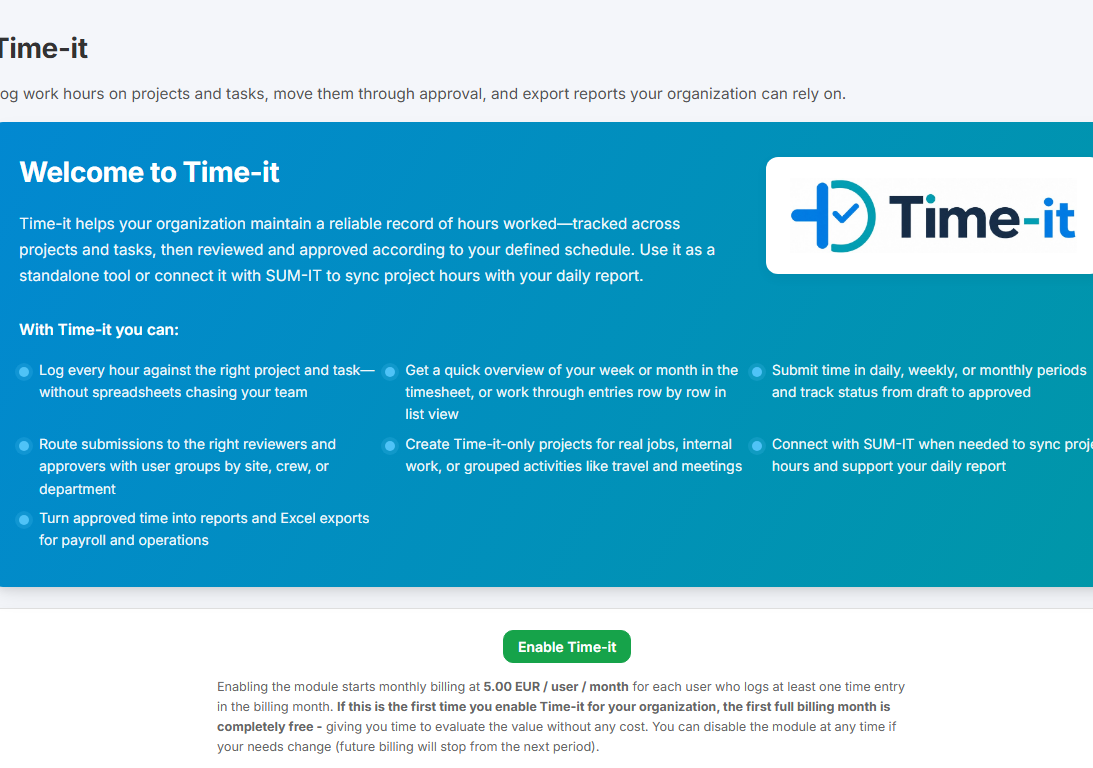
The first time you enable Time-it for your organization, the first full billing month is completely free. You can try the features, set up projects and groups, and see whether it fits — without a charge for that first full month.
Under Apps & Modules → Time-it you enable or disable Time-it for your organization. Enabling may require accepting the terms of use before you can confirm.
What you can do
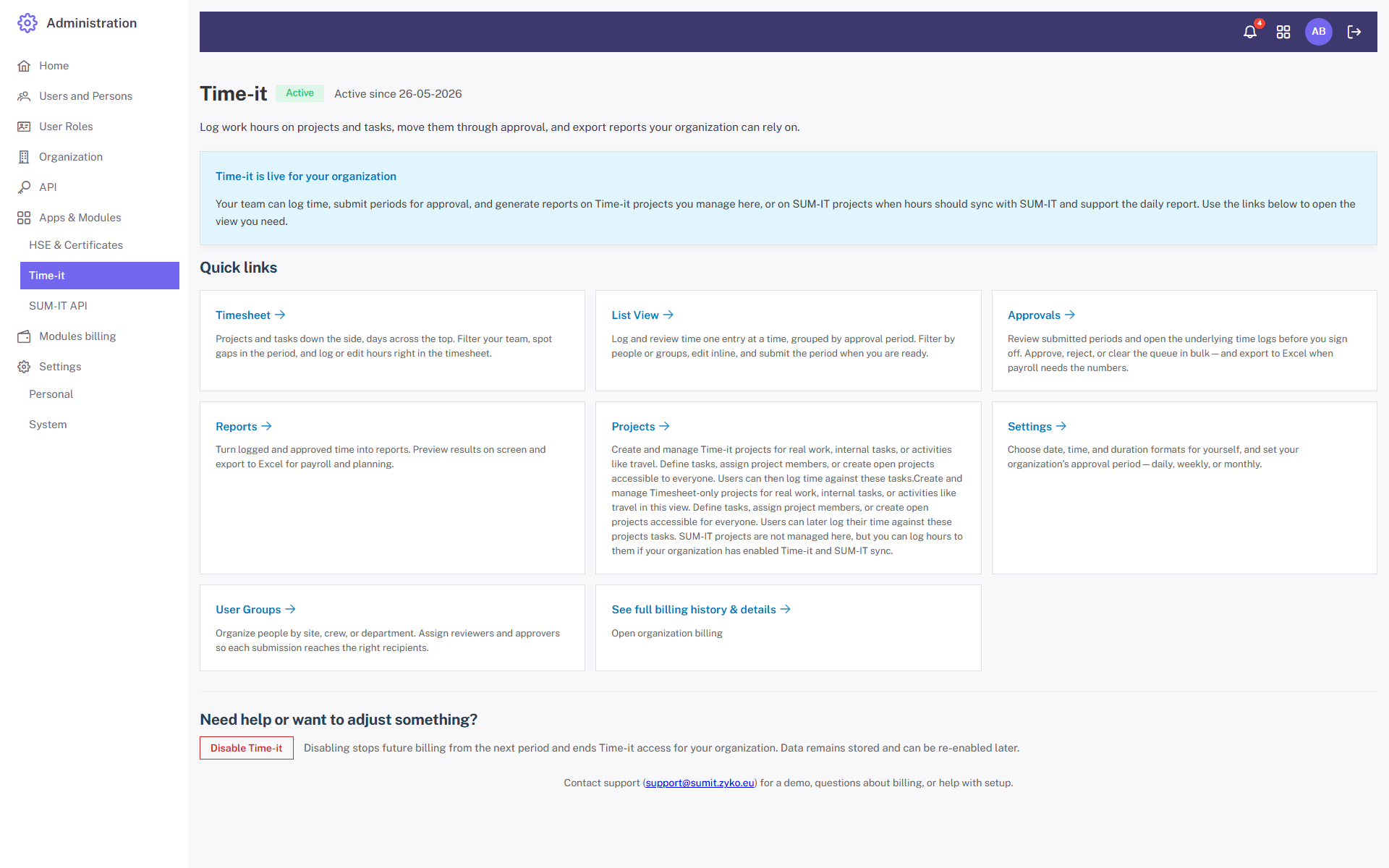
- See whether Time-it is Active, and since when.
- Choose Enable Time-it or Disable Time-it, confirm in the dialog, and accept the terms of use when asked. If you disable Time-it, billing stops from the next period and Time-it access ends for your organization. The data is kept, and you can turn it on again later.
- Use Quick links to open Time-it screens such as Timesheet, Approvals, Settings, or User Groups.
- Open See full billing history & details if your role lets you view Modules billing.
Permissions
You need the Apps & Modules Edit permission. Organization-wide Time-it behaviour (approval period, reminders, timezone) is configured under System settings, not on this page.