What Administration is for
Administration is where organization administrators manage people, roles, organization profile, product modules, API access, and settings. You open it from the apps icon (four small squares) at the top of the screen, or by going straight to the Administration web address your organization or your administrator gave you.
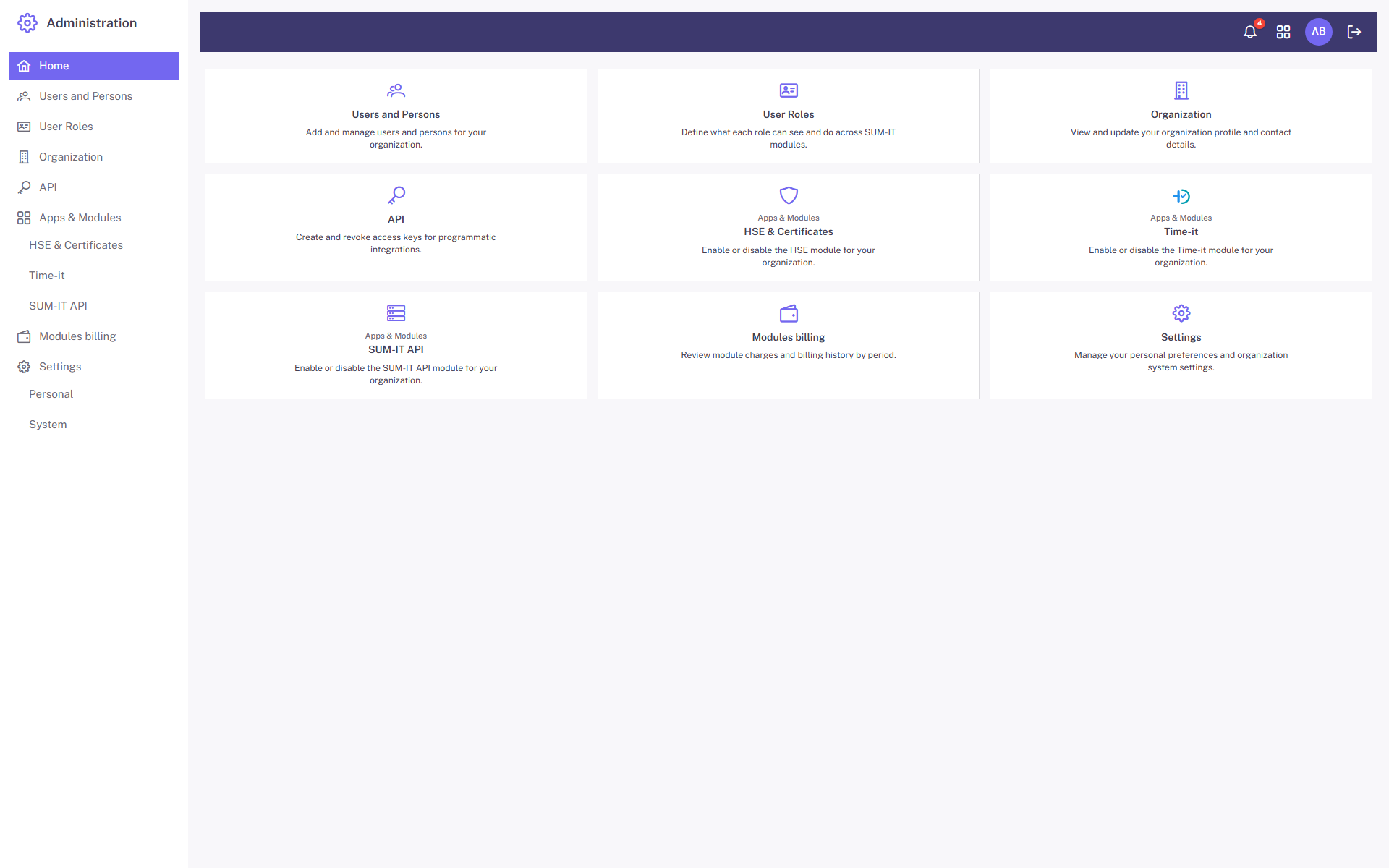
After you sign in you land on Home. The tiles show only the areas your role allows. Everyone with access to Administration can open Settings.
What you can do in Administration
Depending on your role, you may see some or all of these menus:
- Users and Persons is the list of people in your organization. A person is someone you keep on record. A person exists only in SUM-IT, because in SUM-IT managers register time on behalf of other people. That's why persons are kept in Administration. A user is a person with a login, who can sign in themselves and register time for themselves. With the right permissions in their role, they can do more. A user is needed to use other modules such as Time-it, where there is no person record.
- User Roles defines what each user role can see and do. You assign a role when you give someone a login.
- Organization holds your company profile and billing contact details.
- API is where you create and delete access keys, so that another system can connect to SUM-IT.
- Apps & Modules turns modules on or off for your organization. The modules you may see include health, safety and certificates (HSE & Certificates), Time-it, and the SUM-IT API (a way for other systems to connect to SUM-IT).
- Modules billing shows module charges and billing history.
- Settings has your personal preferences and, if you have permission, organization-wide system settings.
The apps icon (four small squares) in the top bar opens the Switch apps menu, where you can move to another app such as SUM-IT or Time-it. Settings is in the left menu ( cog). From Time-it, the top-bar gear opens Administration Settings. The bell opens in-app notifications.
Icons used in this guide
| Icon | Name in the UI | What it does |
|---|---|---|
| Switch apps | Opens the Switch apps menu so you can move to another app. | |
| Open in new tab | Opens the chosen app in a new browser tab. | |
| Home | Opens the Administration home tiles. | |
| Users and Persons | Opens the people list (also used on a role to show assigned users). | |
| User Roles | Opens roles and permissions. | |
| Organization | Opens the organization profile. | |
| API | Opens access keys. | |
| Modules billing | Opens module billing. | |
| Settings | Opens personal or system settings. | |
| Notifications | Opens in-app notifications in the top bar. | |
| New / Add | Starts a new person, role, or billing detail. API keys use the labeled Create access key and Delete access key actions. | |
| Edit | Opens a row or profile for editing. | |
| Delete | Removes a person, role, or billing detail. | |
| Export | Downloads the current list as Excel. | |
| Resend invitation email | Sends the invitation email again for a new user. | |
| Reset multi-factor authentication | Clears MFA for a user so they can set it up again. | |
| Duplicate | Creates a new role from an existing one. | |
| Info | Shows the description of a permission. | |
| Confirm / Save | Confirms a dialog (Confirm) or saves a form (Save). | |
| Cancel | Closes a dialog without saving. | |
| SUM-IT API | Opens the SUM-IT API module page under Apps & Modules. |
Where to go next
- Open Administration explains how to reach the app.
- Users and Persons is where most administrators start when adding people.
- User Roles explains permissions and role assignment.