Personal display and notifications (Time-it)
These settings are for Time-it
Everything on this page applies to the Time-it app. Here you decide how dates, times, and durations look in Time-it, and which Time-it notifications reach you.
Your personal settings apply only to you. Open Settings → Personal in the left menu, or click the gear from another app that opens Administration settings. Both groups below sit under Time-it in the settings menu.
Display & formats
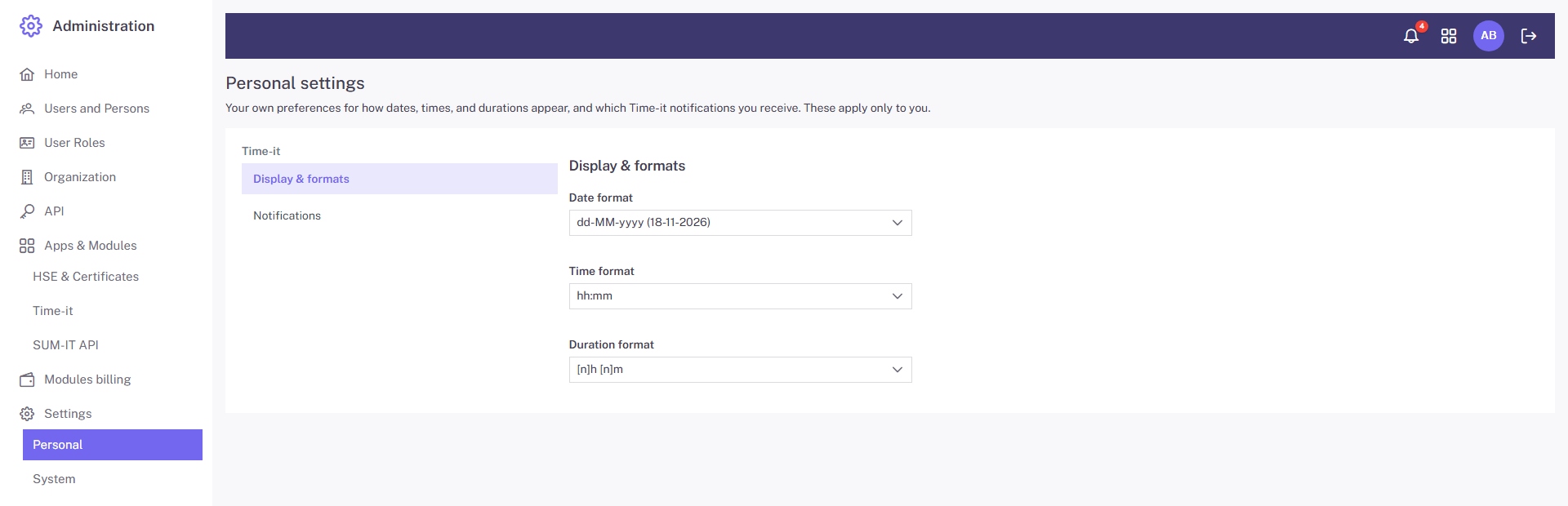
Under Display & formats you choose date, time, and duration formats for Time-it. Changes apply as you select them.
Notifications
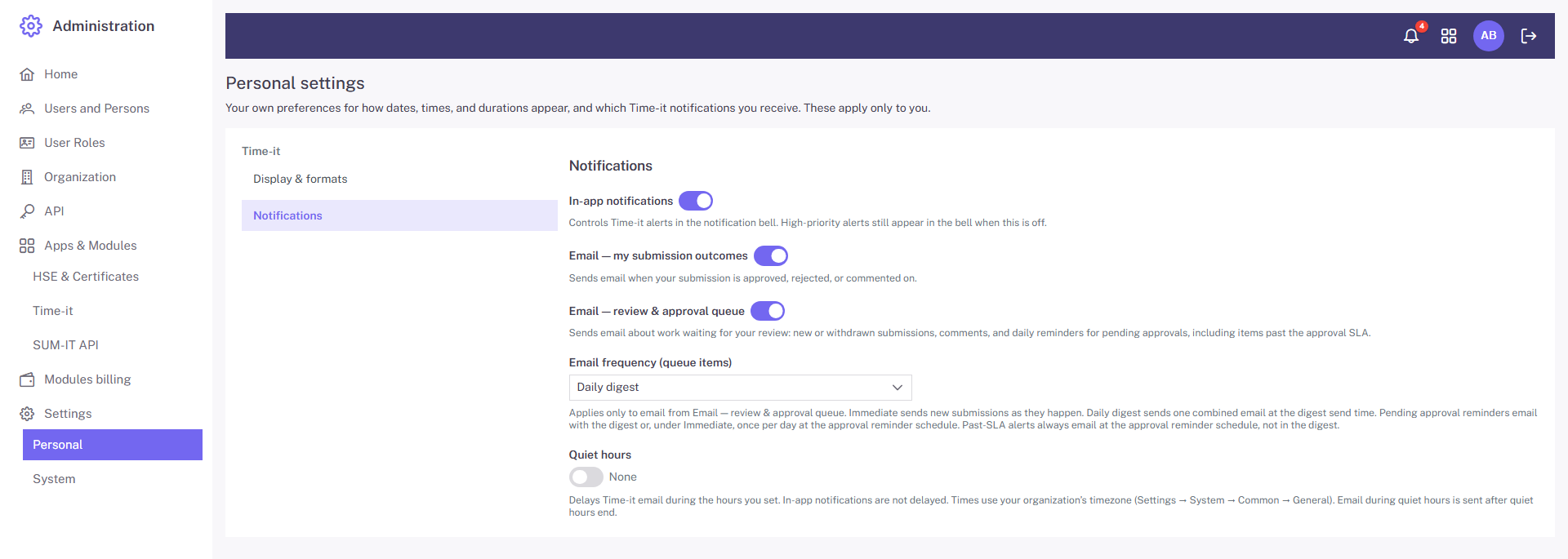
Under Notifications you choose which Time-it alerts and emails reach you:
- In-app notifications: when this is on, Time-it alerts show up in the notification bell in the top bar. When it is off, the bell shows only high-priority alerts.
- Email — my submission outcomes: sends you an email when your submission is approved, rejected, or commented on.
- Email — review & approval queue: emails you about other people's hours: new or withdrawn submissions and comments. You get them for the people whose hours you can see, which means your role has Timesheet
View,View allorApprove, or you are a Reviewer or Approver in their user group, or a Reviewer in their project. So you can get these emails withoutApprove. Daily reminders about pending approvals and approvals past the SLA are narrower: they go only to people who can open Approvals (Approve, or Approver in a user group) and who also haveVieworView all. Nothing is sent unless Time-it is on for your organization and this toggle is on. Email frequency decides when the emails arrive, and Quiet hours can only delay them. - Email frequency (queue items): applies only to the review and approval queue emails. Immediate sends each update as it happens. Daily digest sends one email a day that groups the updates together, at the Daily digest send time your organization set under Settings → System → Time-it → Reminders & SLA (8:00 in the organization's timezone unless changed). You cannot choose your own time.
- Quiet hours: a time window when Time-it sends you no emails. Anything that comes in meanwhile is emailed once the window ends. Alerts in the bell still arrive as usual. The hours follow your organization's timezone.
Who can change this
Every signed-in Administration user can open personal settings. Organization-wide rules (approval period, reminders, timezone, security) sit under Settings → System. See System settings.